From One‑Off Prompts to an AI System with OnVerb
Published on 20 January 2026
Last updated on 20 January 2026
Most people use AI the way they use a search bar.
Type something. Get an answer. Close the tab.
Next day? Start again from scratch.
It works – up to a point. But if you’re using AI seriously for your business, proposals, client work, content, operations, or anything you do repeatedly, that “one‑off prompt” habit quietly burns time and kills consistency.
OnVerb is built for the opposite approach.
Instead of treating every chat as a fresh start, you turn good prompts into systems: structured, reusable, and shareable across your team. In this article, you’ll see exactly how to do that – and by the end you’ll have the blueprint for your own prompt library in OnVerb.
Why a prompt library beats “prompt chaos”
If you recognise any of these, you’re ready for a proper system:
- You keep scrolling through old chats to find “that really good prompt” you used last month.
- Your team all use AI, but their outputs feel like they’re coming from different companies.
- You spend more time explaining tasks to AI than you save doing the work.
- You’ve bookmarked prompts in random notes apps and they’re already out of date.
A prompt library solves this by:
- Making your best prompts easy to find and reuse.
- Embedding your brand voice, standards and processes into every AI interaction.
- Letting your whole team benefit from each other’s experiments, instead of everyone starting from zero.
OnVerb is designed around this idea. Its system prompts aren’t just “saved chats”; they’re structured templates with:
- Clear context
- Specific instructions
- Defined inputs
- Example outputs
Let’s walk through how to build your first library.
Step 1: Decide what belongs in your prompt library
Before you open OnVerb, take five minutes and list the tasks you repeat often.
Think in terms of workflows, not isolated prompts. For example:
-
Sales
- Qualifying inbound leads
- Drafting follow‑up emails
- Tailoring proposals to a new sector
-
Marketing
- Turning a brief into a content outline
- Repurposing a blog post into social posts and emails
- Writing on‑brand landing page copy
-
Consulting / client services
- Turning call notes into client‑ready summaries
- Creating proposal drafts from discovery notes
- Producing monthly performance reports
-
Operations / internal
- Drafting role descriptions
- Turning raw meeting notes into action lists
- Producing how‑to guides from process notes
Pick 3–5 workflows where AI could reliably save you time every week. Those will become your first system prompts in OnVerb.
For this guide, we’ll use one concrete example all the way through:
Example workflow: “Client proposal generator for a consulting or services business”
Step 2: Understand OnVerb’s system prompt structure
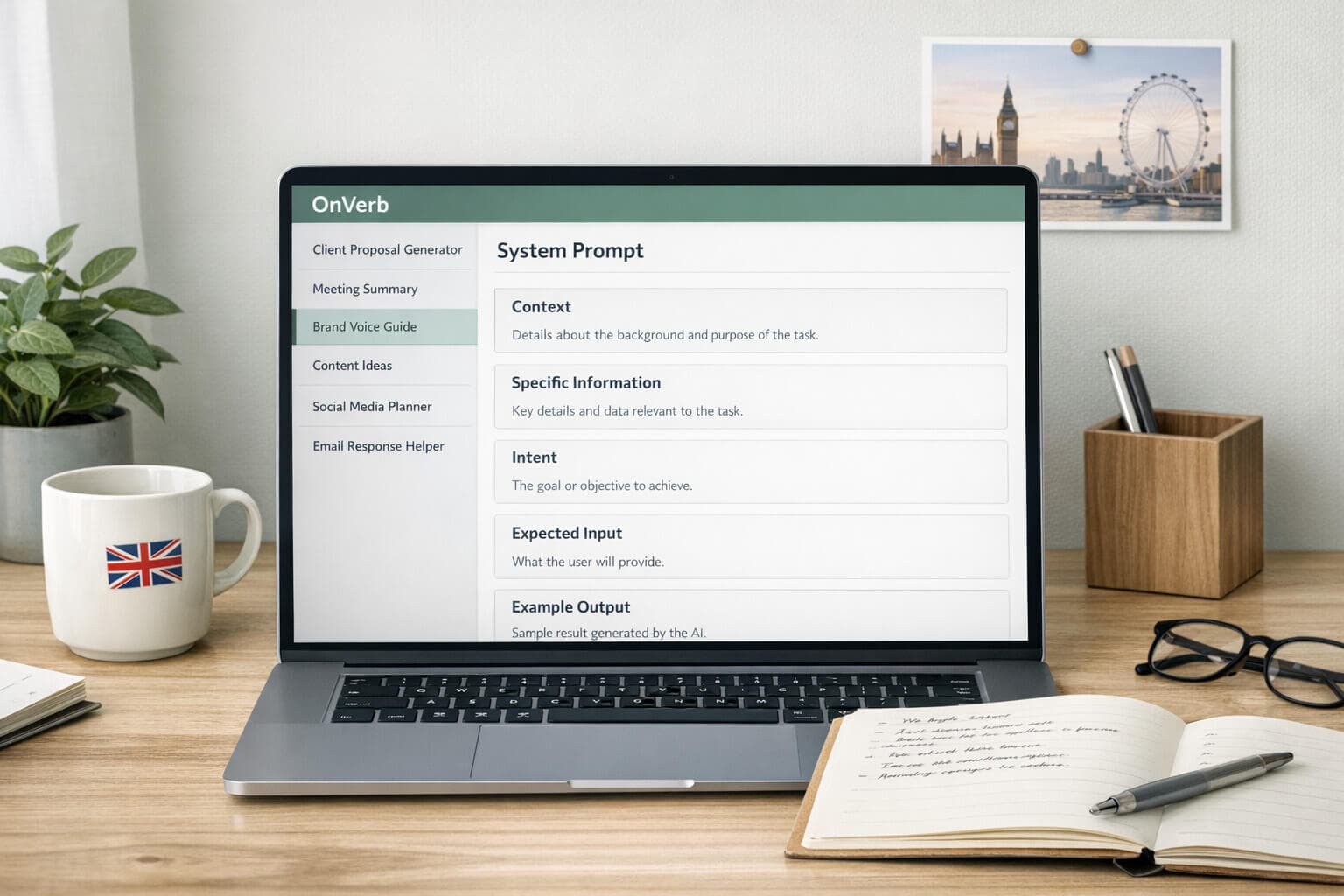
OnVerb uses a simple but powerful structure for system prompts. You’ll see fields like:
- Context – Who you are, who you’re writing for, what you’re trying to achieve.
- Specific information – Details that rarely change but really matter: brand, product, constraints.
- Intent – What the AI should do with the user’s input.
- Expected input – What the human should provide each time (so it’s repeatable).
- Example output – A demonstration of the result you want.
Think of it as briefing a new team member. If you get the brief right once, you don’t have to rewrite it every time.
In OnVerb, you can save this as a system prompt and then reuse it across any of the supported models (GPT‑4, Claude, Gemini, Mistral, and so on).
Step 3: Turn a messy prompt into a clean system
Here’s how many people start with proposals:
“Write a client proposal for me.”
Sometimes they add a bit more:
“Write a client proposal for a potential client. We offer marketing consulting. Make it sound professional and persuasive.”
You might get something vaguely usable, but it’ll be generic, off‑brand and usually too long or too vague.
Let’s turn that into a proper system prompt for OnVerb.
3.1 Define the Context
In OnVerb, in the Context field, you might write:
You are a senior marketing consultant at a small but highly professional UK‑based consultancy.
The consultancy works mainly with SMEs (10–200 employees) who want to improve their digital marketing, but don’t have an in‑house senior marketer.
Your role is to draft clear, credible and realistic proposals that:
- demonstrate that we understand the client’s situation
- explain our recommended approach in plain English
- set realistic expectations
- make it easy for the client to say “yes”
Use UK spelling and a warm, confident, no‑nonsense tone.
Already, that’s far clearer than “write a client proposal”.
3.2 Add Specific information
This is where you bake your business into the prompt. In OnVerb’s Specific information section, you might add:
Our consultancy:
- Name: Brightline Marketing Consultancy
- Location: London, working across the UK and Europe
- Core services: marketing strategy, campaign planning, measurement and optimisation
- Typical engagement length: 3–6 months
- Typical deliverables: strategy document, campaign plan, monthly performance reporting, fortnightly calls
Our brand and tone:
- Plain language, avoid jargon where possible
- Honest about what we can and can’t do
- No over‑promising; we prefer under‑claiming and over‑delivering
Pricing notes:
- We normally propose a monthly retainer
- We rarely discount; instead we adjust scope if needed
OnVerb can encrypt sensitive bits of this (like pricing structure, internal notes), so you can safely store more than you’d put in a public doc.
3.3 Clarify the Intent
Now tell the AI exactly what its job is:
When the user provides details about a specific client and project, draft a complete client proposal tailored to that client.
The proposal should:
- restate the client’s situation and goals in their own language
- explain our recommended approach and phases of work
- outline key deliverables and timelines
- give an indicative pricing structure (but not exact day‑rates)
- end with clear next steps for the client
This sits in the Intent part of the system prompt. It’s what OnVerb uses to guide the model every time.
3.4 Define the Expected input
This is where many prompts fall apart. If you don’t tell future‑you (or your team) what to paste in, you won’t get consistent results.
In the Expected input section, specify:
Each time you use this prompt, provide:
- Client background – sector, size, location, current marketing setup
- The main problem(s) they raised
- Their goals and any specific targets
- Any constraints (budget range, timeframes, internal resources)
- Any relevant notes from your conversation (tone, preferences, objections)
You can paste bullet points or call notes; the AI will structure it into a proposal.
Now this “one prompt” has become a small system anyone on your team can follow.
3.5 Add an Example output
Finally, show the AI what “good” looks like. In OnVerb’s Example output field, paste a shortened or anonymised version of a real proposal you’re proud of.
For example (shortened):
Example output (excerpt)
1. Your situation
From our call on 12 January, we understand that [Client] is a 25‑person software company based in Manchester, with a strong product but limited in‑house marketing capacity. You’ve relied mostly on founder‑led outreach and word‑of‑mouth, and now want to build a more predictable pipeline of qualified leads.2. Objectives
Over the next 6–9 months, you’d like to:
- increase qualified inbound demo requests by 30–40%
- clarify your positioning in a crowded market
- establish a consistent content and campaign calendar
3. Our proposed approach
We suggest working together in three phases:
- Phase 1: Discovery and positioning (4 weeks)
- Phase 2: Campaign planning and setup (6–8 weeks)
- Phase 3: Ongoing optimisation and reporting (remainder of engagement)
[continue with deliverables, pricing overview and next steps…]
You don’t need the whole thing – a few pages is enough. The point is to give the model a pattern.
Step 4: Create and save the system prompt in OnVerb
Now you’ve drafted the pieces, let’s put them into OnVerb.
-
Open OnVerb and log in.
-
Go to your Prompt Library (or equivalent section where system prompts live).
-
Click Create new system prompt.
-
Fill in the fields:
- Name:
Client Proposal Generator – Brightline - Context: paste your context block.
- Specific information: paste your business details, brand guidelines, pricing notes.
- Intent: paste the job description for the AI.
- Expected input: paste the instructions for what the user should provide each time.
- Example output: paste your sample proposal excerpt.
- Name:
-
Choose whether this prompt is personal or shared with a team.
- If you’re in a consultancy or agency, share it with your client‑facing team.
-
Save it.
You’ve just created your first reusable AI workflow in OnVerb.
Next time you have a new prospect? You don’t start from scratch. You open this system prompt, paste in your client notes, and let the model do a solid first draft.
Step 5: Test, tweak and standardise
A system prompt isn’t “done” just because it’s saved. It will get better as you use it.
Here’s a simple way to refine it in OnVerb:
-
Run three real tests
- Use the same system prompt for three different clients.
- Note what works and what you always have to change manually.
-
Adjust the prompt, not just the output
- If a section always comes out too long, update the Intent:
“Keep each section concise (2–3 short paragraphs). Total length under 2,000 words.”
- If the tone is slightly off, adjust the brand voice in the Specific information section.
- If it misses something you always have to add (e.g. “risks and assumptions”), add that as a required section in the Intent and include it in your example output.
- If a section always comes out too long, update the Intent:
-
Document your “do and don’t” rules inside the prompt
For example, in Specific information:Do: be honest about uncertainties; suggest a phased approach if scope is unclear.
Don’t: guarantee specific ROI numbers; commit to work we haven’t discussed. -
Version your prompts sensibly
In OnVerb, use naming like:Client Proposal Generator – Brightline v1.0Client Proposal Generator – Brightline v1.1 (shorter sections)
You can deprecate old versions once you’re confident in the new one.
This is how a casual “help me write” prompt evolves into a reliable internal tool.
Step 6: Share with your team and make it a standard
Once your proposal generator works well for you, make it a team standard.
In practice, that means:
- Share the system prompt with your OnVerb team.
- Add a short usage note in your internal docs or Notion:
“All client proposals should start from the OnVerb
Client Proposal Generator – Brightlinesystem prompt. Paste your call notes into the Expected input section, generate a draft, then edit as needed.” - Run a short walkthrough session:
- Show colleagues how to open the prompt, paste inputs, pick a model, and refine the output.
- Emphasise that they should edit the AI’s draft, not send it as‑is.
From that point on, you’ve standardised not just a document template, but a whole thinking process.
Step 7: Repeat the pattern for other workflows
You now have a template you can replicate for almost anything you do repeatedly.
A few ideas that work brilliantly as OnVerb system prompts:
-
Meeting summary + actions
- Context: your role and typical meeting type.
- Specific information: preferred structure (summary, decisions, actions, owners, deadlines).
- Intent: “Turn messy notes into a clean summary with bullet‑point actions.”
- Expected input: raw notes or transcript.
- Example output: one of your favourite existing summaries.
-
On‑brand blog draft generator
- Context: who you’re writing for, your expertise level, tone.
- Specific information: brand voice, taboo words, formatting preferences, target reading time.
- Intent: “Turn an outline into a full draft while keeping my voice.”
- Expected input: blog title, rough outline, key points.
- Example output: a previous blog you actually like.
-
Support response templates
- Context: your support role and customer segment.
- Specific information: promises you can / can’t make, refund policies, tone guidelines.
- Intent: “Turn a customer complaint into a calm, clear reply that de‑escalates and offers options.”
- Expected input: customer message, ticket history, any internal notes.
- Example output: a real response that went down well.
Each one becomes a tile in your OnVerb library. Over time, you’re not just “using AI more”; you’re building an AI operations layer for your work.
Practical tips for keeping your prompt library tidy in OnVerb
A messy library is just a different kind of chaos. A few small habits keep it useful.
Use clear, searchable names
Bad: Good email prompt
Better: Client Follow‑Up Email – Warm Leads – B2B SaaS
Include:
- The task (
Proposal,Summary,Report,Email) - The audience or context (
SME owners,Enterprise buyers,Internal team) - Optional: version (
v1.2,Beta,Internal only)
Group prompts by workflow or team
Depending on how you work, consider:
- Folders or tags like
Sales,Marketing,Delivery,Ops,Leadership. - Team‑specific prompts vs shared company‑wide prompts.
- Client‑specific prompts for agencies (e.g. one brand voice prompt per client).
Protect sensitive information with encryption
OnVerb supports encrypted fields for sensitive system prompt data. Use it for:
- Pricing rules
- Internal policies
- Non‑public product information
- Any wording around legal or compliance constraints
That way, your team gets the benefit of a rich, well‑briefed AI – without exposing private details unnecessarily.
Periodically review and prune
Once a quarter (or even monthly if you’re heavy users):
- Archive prompts that no one has used for 60–90 days.
- Merge duplicates (if you’ve got three “meeting summary” prompts, keep the best).
- Update examples with more recent, higher‑quality outputs.
A small amount of housekeeping keeps the library fast to navigate and pleasant to use.
Bringing it all together
Shifting from one‑off prompts to a proper AI system isn’t about being clever with wording for its own sake. It’s about:
- Reducing the mental load every time you open an AI chat.
- Making your best thinking reusable and shareable.
- Protecting quality and brand voice as more people in your organisation use AI.
- Turning “AI experiments” into real, dependable workflows.
OnVerb is built to make that shift feel natural: you capture your context once, define clear inputs, show what “good” looks like, and then let any supported model work within that frame.
Your next steps (a 30‑minute exercise)
If you want to put this into practice today:
- Pick one workflow you repeat every week (proposals, reports, emails, whatever costs you the most time).
- Draft the five pieces:
- Context
- Specific information
- Intent
- Expected input
- Example output
- Create a new system prompt in OnVerb and paste them in.
- Test it with one real task you need to do this week.
- Tweak, then share it with at least one colleague (if you work in a team).
You’ll feel the difference very quickly. Instead of wondering what to type into a blank chat box, you’ll be working inside a system that already understands who you are, what you care about, and how you like things done.
And that’s when AI stops feeling like a toy – and starts feeling like part of how your business actually runs.